To complete the Monthly Sales Reconciliation task, you will need to review and input (or update) any sales / tax amounts per license and include supporting documentation. You may also include comments explaining sales amounts input.
1. Under the My Tasks Container, click on the "Case No." for Monthly Sales Reconciliation.

2. Click on Enter Sales in the upper right corner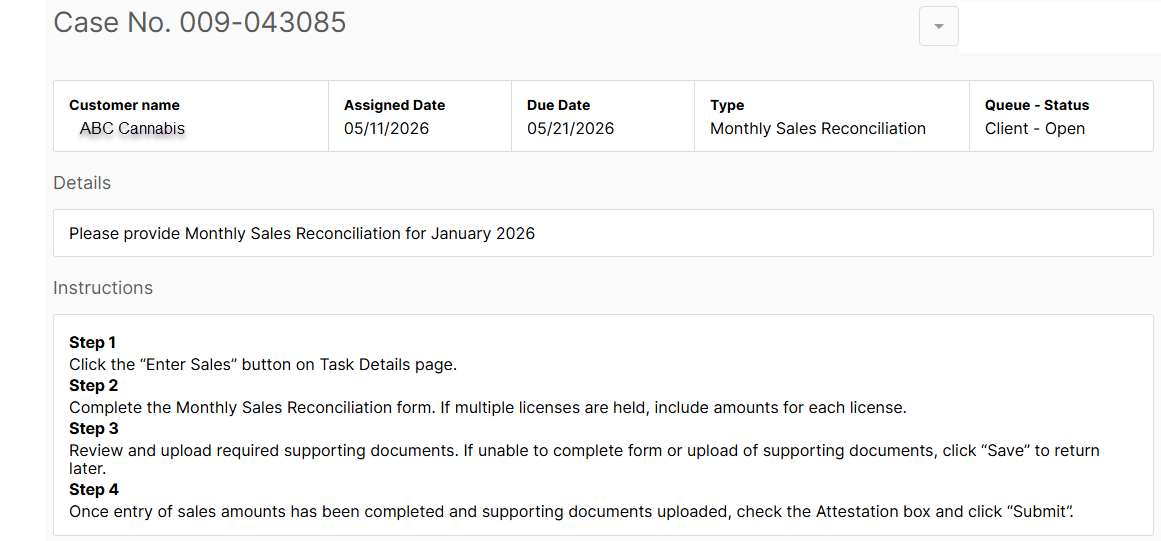
3. A new view will open, where you may enter the sales and tax amounts for the license in the lower section. The "Regulated Sales Activity" field may contain the value received from the state seed to sale provider (if a valid API key / UBI has been provided). You may update that field if necessary or leave the value there. Add the value(s) for "Unregulated" sales (non-plant touching that has NOT been reported to the state as plant touching sales) and "Sales and / Or Excise Tax Collected" for each license.
A $0 value must be entered if there are no sales or taxes. Each field must have an entry.
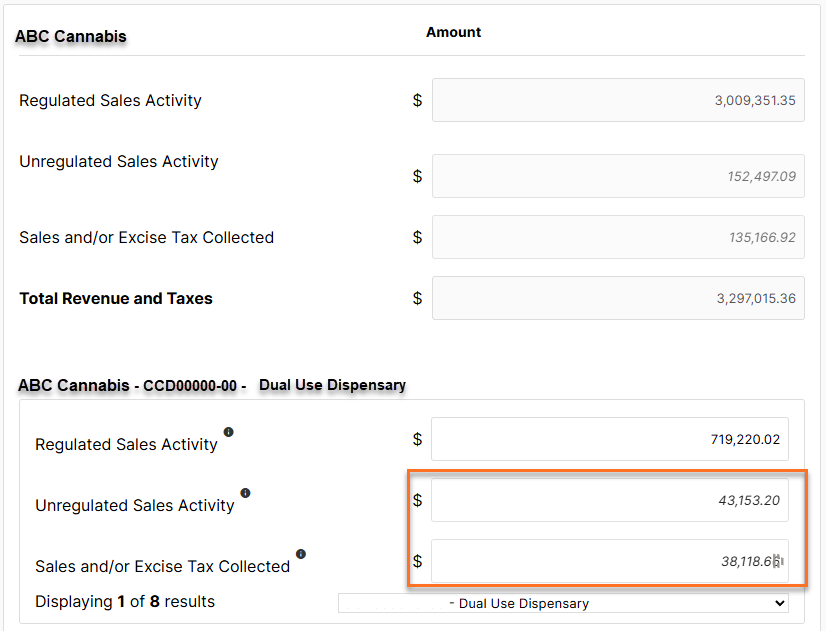
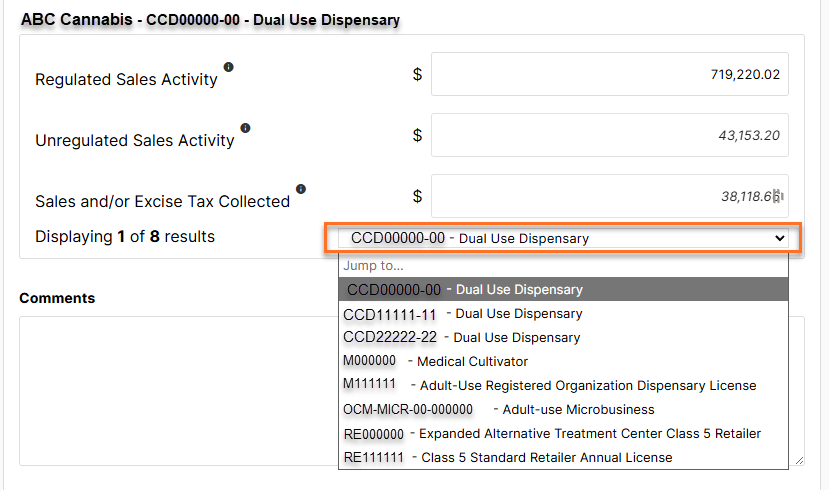
NOTE: If multiple licenses are held, use the drop down on the lower right side to update the values for each license separately. If your financial institution has the estimates feature enabled, the unregulated sales activity and sales and/or excise tax collected will have an estimated value populated.
Regulated Sales Activity
The "Regulated Sales Activity" will prefill (for states with trace integrations from Metrc, Biotrack, etc). Please verify the amount, no update is needed if accurate.
If the Licensed Sales Activity value is incorrect, please update for manual attestation.
Unregulated Sales Activity
Enter in the amount for "Unregulated Sales Activity". Unregulated sales activity includes any non-cannabis sales like merch, swag, paraphernalia, etc.
If your financial institution has the estimates feature enabled, the unregulated sales activity may have an estimated value populated. Please verify the amount, no update is needed if accurate.
If the Unregulated Sales Activity value is incorrect, please update for manual attestation.
Sales and/or Excise Tax Collected
Enter the total value of all "Sales and/or Excise Tax Collected".
If your financial institution has the estimates feature enabled, the Sales and/or Excise Tax Collected may have an estimated value populated. Please verify the amount, no update is needed if accurate.
If the Sales and/or Excise Tax Collected value is incorrect, please update for manual attestation.
NOTE: If any numbers are zero, you must enter zeroes.
4. Once all values are entered for all licenses, click Save.
NOTE: If all values are not filled out with a value or zero, if not applicable, an error alert may be presented. Click OK and review each license for completion.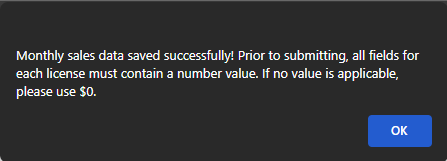

5. Once all information is saved, check the box to attest that the information entered is true and complete.
6. Add any comments to the FI to explain any of the attested amounts.
7. Click on Upload and attach supporting documentation to support the attested values.
8. Click on Submit. This will move the case to the FI for review.
Was this article helpful?
That’s Great!
Thank you for your feedback
Sorry! We couldn't be helpful
Thank you for your feedback
Feedback sent
We appreciate your effort and will try to fix the article